
Close Menu

    Subscribe to Updates

    Get the latest creative news from FooBar about art, design and business.

    What's Hot

    Mobile Phones: Best 7 Tips for Detecting Fake Mobile Phones

    10 Tips to Keep Your Phone Charger Cool

    Best 10 laptops of different brands under 30000 taka in Bangladesh

    Facebook X (Twitter) Instagram
    Saturday, December 6
    • About us
    • Contact Us
    • Privacy Policy
    • Disclaimer
    • Terms and Conditions
    Facebook Instagram
    DarkGadgets
    • Home
    • Reviews
      1. Mobile Reviews
      2. 5g Mobiles
      3. Laptop
      4. Upcoming Mobiles
      5. View All

      Mobile Phones: Best 7 Tips for Detecting Fake Mobile Phones

      Smartphones to be launched in June 2025 – Upcoming Smartphones In June 2025

      Samsung Galaxy S24 Ultra Review: Ultra power with a dash of AI

      Infinix Note 40 Pro 5G Price & Full Specifications

      Best 7 Features of the OnePlus 13 Pro 5G with 12GB RAM

      5 Best OnePlus Nord 5 Alternatives: Top 5 Mobiles Under ₹35,000

      5 Best Gaming phone under 30000 (June 2025)

      Smartphones to be launched in June 2025 – Upcoming Smartphones In June 2025

      Best 10 laptops of different brands under 30000 taka in Bangladesh

      10 Tips to Boost Your Laptop Speed Instantly

      Top 7 Best Laptops Under 40,000 – 65,000 for Students

      Honor MagicBook X14 Pro Price in India: Know the features and price of Honor MagicBook X14 Pro

      Mobile Phones: Best 7 Tips for Detecting Fake Mobile Phones

      10 Tips to Keep Your Phone Charger Cool

      Best 10 laptops of different brands under 30000 taka in Bangladesh

      10 Tips to Boost Your Laptop Speed Instantly

      No more UPI PIN – 5 Benefits of Using Face ID for Payments

      Samsung Galaxy S23 Price Discount is very high, know the specifications of Samsung now

      Second Hand iPhone 8 in India: Is it worth buying a used iPhone 8?

      Huawei Mate XT: Huawei Mate XT mobile that folds 3 times has been launched, know its specification, price in India

    • Entertainment
    • Wearable
    • Web Stories
    DarkGadgets
    You are at:Home » Blog » 5 Simple Steps to Install Windows 11 Offline
    Blog

    5 Simple Steps to Install Windows 11 Offline

    darkgadgets.comBy darkgadgets.com
    Facebook Twitter Pinterest LinkedIn Tumblr Email
    How to install Windows 11 without an Internet connection?
    Share
    Facebook Twitter LinkedIn Pinterest Email

    How to Install Windows 11 Offline Without Using an Internet Connection: Step by Step

    Installing Windows 11 without an internet connection can be tricky, but it is totally doable. Through this process, I have also come across many cases where users want to install Windows 11 offline, perhaps because they don’t have internet access or to avoid the online setup steps. Here I will guide you on how to install Windows 11 without an internet connection and even how to skip the network step. That way, your system will be up and running in no time. Let’s go through the steps!
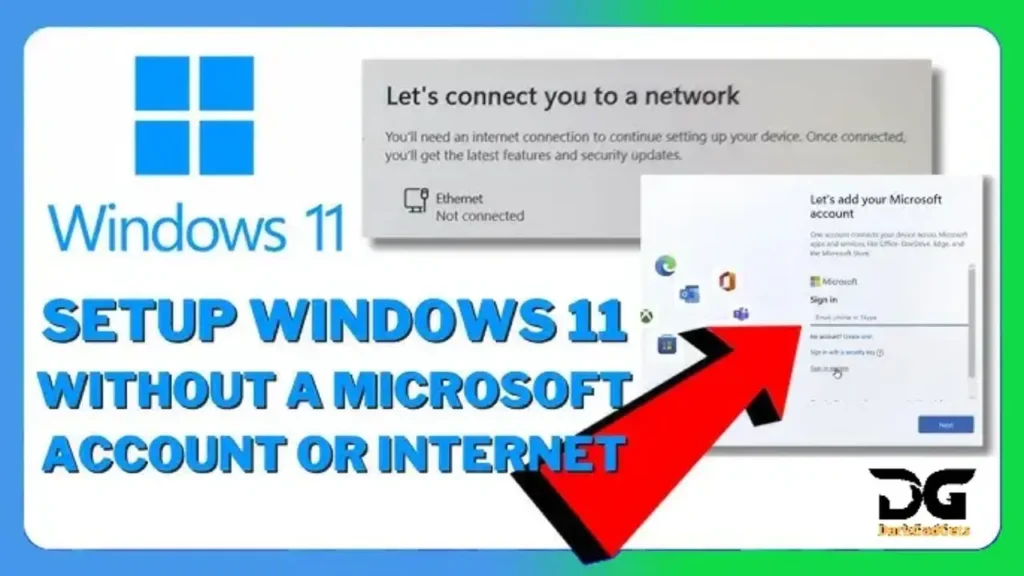
    How to install Windows 11 without an Internet connection

    What's in the post?

    • How to Install Windows 11 Offline Without Using an Internet Connection: Step by Step
    • How to install Windows 11 without an Internet connection?
      • How to bypass the requirement
      • What you need to know
    • Install Window 11 OFFLINE 2026 – No Microsoft Account Needed!
    • Minimum PC requirements for Windows 11
    • Frequently Asked Questions
    • How to install Windows 11 without signing in to a Microsoft account?
    • How to Install Windows 11 Without a Microsoft Account
    • Can I create a local account if I install Windows 11 without the internet?
    • Can I install Windows 11 offline without an internet connection?
    • What if I can’t bypass it during installation?
    • Disclaimer:

    How to install Windows 11 without an Internet connection?

    Microsoft requires internet and a Microsoft account to install Window 11 Home and Pro.

    But there is a way to complete the installation without logging in, using “loopholes”.

    How to bypass the requirement

    • Started installing Window 11 from USB.
    • When you reach the step that asks for Internet, press Shift + F10 to open the Command Prompt.
    • Type: OOBE\BYPASSNRO
    • and press Enter. The computer will restart.
    • When you re-enter setup, you will see an option “I don’t have Internet”.

    You can now go ahead and create a local account without an online login.

    What you need to know

    • The method works on Windows11 Home and Pro.
    • You can later connect to the Internet and add a Microsoft account if you want.
    • The local account gives you more privacy, but some features (OneDrive, Store sync) will not work.

    Easy Steps to Install Windows 11 Without Internet Access

    Install Window 11 OFFLINE 2026 – No Microsoft Account Needed!

    Minimum PC requirements for Windows 11

    Component and Requirement

    Processor1 GHz or faster with 2 or more cores on a compatible 64-bit processor or SoC
    RAM4 GB or more
    Storage64 GB or larger storage device
    System FirmwareUEFI, Secure Boot capable
    TPMTrusted Platform Module (TPM) version 2.0
    Graphics CardCompatible with DirectX 12 or later, with a WDDM 2.0 driver
    Display720p HD display that is 9 inches or greater diagonally, with 8 bits per color channel
    Internet ConnectionRequired for updates and certain features; a Microsoft account is also required for Window 11 Home first-time setup

    Frequently Asked Questions

    How to install Windows 11 without signing in to a Microsoft account?

    I know about the method

    OOBE\BYPASSNRO

    but here’s the problem: I was already connected to a wifi network before I knew I would be asked to connect. Now the above method doesn’t seem to work. The installation skips the network setup stage and goes to the login page. Is there a way to restart the installation process and make it forget the wifi? I haven’t been able to find an answer to this specific problem. Any help would be appreciated.

    EDIT: For anyone who finds themselves in this post looking for an answer – I found a way. From the command line you can reset the computer using ” systemreset –cleanpc “. This makes Windows forget the previous network.

    How to Install Windows 11 Without a Microsoft Account

    There’s a simple trick to setting up Windows11 with a local account, which involves running a command to bypass the need for an Internet connection and then disconnecting at the right time during the setup. This method works for both a clean install of Windows11 and the initial setup of a new PC from a store.

    Can I create a local account if I install Windows 11 without the internet?

    Yes, you can create a local account if you skip the network setup during setup. This will allow you to use Window 11 without a Microsoft account.

    Can I install Windows 11 offline without an internet connection?

    Yes, you can install Window 11 without using the Internet. The secret is to bypass the network setup during installation by using the “I don’t have an internet connection” or “Skip for now” option.

    What if I can’t bypass it during installation?

    You should ensure that the installation media was created correctly and that your BIOS settings allow offline installation. Try creating the bootable media again with Rufus or another installation tool.

    Disclaimer:

    At the time of writing this post, 5 Best OnePlus Nord 5 Alternatives Under ₹35,000, its price keeps changing with time smartphone offers.

    If you find this post useful, please like, share and comment on it. Please tell us what else is missing in this post. Thank you.

    For more information, you can follow DarkGadgets on medium, Facebook , For more news on mobile phones, tech, guides, and more , visit DarkGadgets .

    Share. Facebook Twitter Pinterest LinkedIn Tumblr Email
    Previous ArticleBest 7 Features of the OnePlus 13 Pro 5G with 12GB RAM
    Next Article Easy Steps to Install Windows 11 Without Internet Access
    darkgadgets.com
    • Website

    Related Posts

    Mobile Phones: Best 7 Tips for Detecting Fake Mobile Phones

    Blog

    10 Tips to Keep Your Phone Charger Cool

    Blog

    Best 10 laptops of different brands under 30000 taka in Bangladesh

    Blog
    Leave A Reply Cancel Reply

    Recent Post
    • Best 7 Ways to identify a fake or duplicate mobile phoneMobile Phones: Best 7 Tips for Detecting Fake Mobile Phones
    • Why does the phone charger get too hot? Solutions and remedies10 Tips to Keep Your Phone Charger Cool
    • Top 10 laptops of different brands under 30000 taka in BangladeshBest 10 laptops of different brands under 30000 taka in Bangladesh
    • How to speed up a laptop: 10 simple and effective tips10 Tips to Boost Your Laptop Speed Instantly
    • URBAN Fit Z premium smartwatch launched in India, with Bluetooth calling and powerful features5 Must-Know Features of URBAN Fit Z Smartwatch
    • Facebook
    • Twitter
    • Instagram
    • Pinterest
    Don't Miss

    Mobile Phones: Best 7 Tips for Detecting Fake Mobile Phones

    10 Tips to Keep Your Phone Charger Cool

    Best 10 laptops of different brands under 30000 taka in Bangladesh

    10 Tips to Boost Your Laptop Speed Instantly

    Top Posts
    Stay In Touch
    • Facebook
    • YouTube
    • Instagram
    • Pinterest
    Popular Post

    Subscribe to Updates

    Get the latest tech news from FooBar about tech, design and biz.

    About

    DarkGadgets is created by news writers and bloggers. The main objective of DarkGadgets is to deliver new and fresh information to the readers first. Many eminent writers are constantly working to make this news blog the best. The first objective of DarkGadgets is to create an important base of online news on computer and mobile for its readers. We are committed to provide fast and correct news describing national and international News, Gadgets Reviews, and Entertainment news and Accessories etc.

    Facebook Instagram Pinterest
    Most Popular

    Best 5 Issues Users Face with AirPods Pro 3 and Solutions

    18

    Poco C55 Cheapest Price: Poco’s phone is discounted by ₹ 7500, know about display and design now

    9

    Best 7 Features of the OnePlus 13 Pro 5G with 12GB RAM

    7

    Subscribe to Updates

    Get the latest creative news from FooBar about art, design and business.

    Copyright © {2024}. Designed by DarkGadgets.
    • Home
    • About us
    • Contact Us
    • Privacy Policy
    • Disclaimer
    • Terms and Conditions

    Type above and press Enter to search. Press Esc to cancel.